
Clips
Turn indexed episodes' key moments into captioned vertical video clips — trim on the transcript, style with templates and caption styles, render, and download.
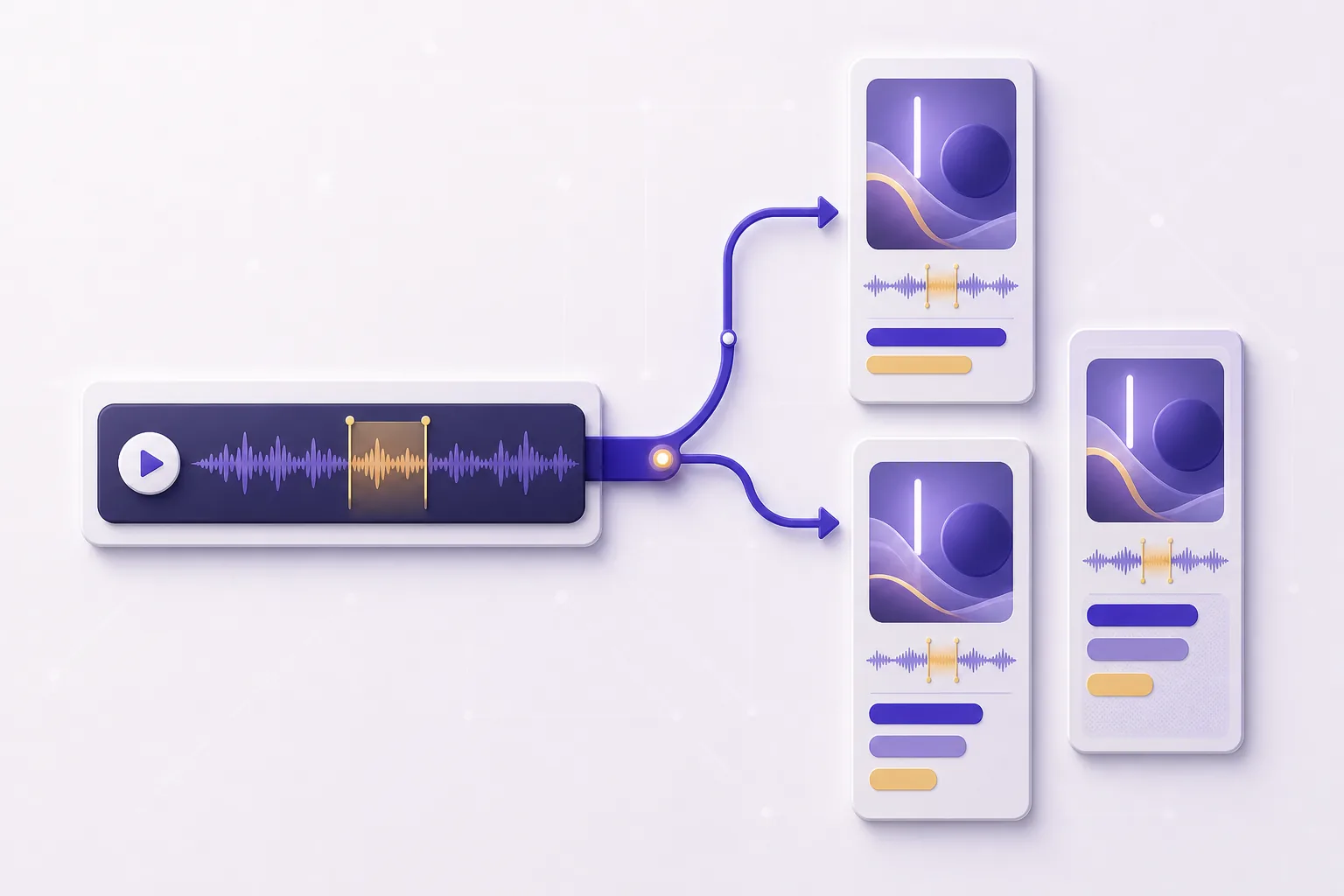
The Clips page at podhood.com/studio/<slug>/clips turns your audio episodes into short vertical videos ready for YouTube Shorts, Instagram Reels, and TikTok. PodHood builds the video from the episode's audio alone — animated captions, your episode art, the speaker's name, and a live waveform — so an audio-only show gets a presence on video platforms without a camera or a video editor.
Availability
- RSS-sourced Channels only (for now). The renderer builds video from your feed's episode audio. A YouTube-sourced Channel doesn't show the surface yet; footage-based clips for YouTube Channels are planned next.
- Indexed episodes only. Clip candidates come from an episode's key moments and word-level transcript, which exist once the episode is indexed.
- Every plan, no Credits. Clips is included on every plan, Free included. Rendering never draws from the Owner's Credit pool — instead each Channel has a fair-use cap of 20 video renders per 24 hours. Editing and previews don't count against it. See Plans & credits.
From episode to clip
The Clips page has two tabs: Episodes — every clippable episode with its key-moment count — and Clips — everything you've already cut, across the whole Channel.
Pick a suggested moment
Open an episode and PodHood lists its suggested moments — the same key moments indexing extracted for the episode's Brief: the claims, definitions, and turns worth quoting. Each candidate arrives pre-trimmed to its moment (about a minute by default), snapped to sentence boundaries so it never opens mid-word. A moment squeezed against a chapter boundary is flagged as a short window rather than hidden — you can widen it in the editor.
Trim on the transcript
The editor shows the transcript, not a waveform: click a sentence to set the selection's edges. A clip can run from 3 seconds to 3 minutes. The words inside the selection are exactly what the captions will say.
Style it
Two independent choices:
- Template — the picture: layout, palette, and artwork treatment. Eleven to choose from (Poster, Cinema, CRT, Vinyl, Press, Ring, Magazine, Scope, Quote, Terminal, Voice print). Every template carries your show's name, the episode cover, the speaker's name, and its own waveform treatment.
- Caption style — how the words move: 17 animated styles in four groups (Basic, Kinetic, FX, Editorial), from readable karaoke to kinetic type. Any caption style works with any template.
Then the text: set the on-screen title, and optionally click words inside the selection to choose the keyword highlights the captions emphasize (by default they follow the title). Fine-tune covers the rest — brand label, meta line, speaker name, per-slot colors — and the preview canvas is editable directly: click an element to select it, drag to reposition, double-click to rewrite text. Reset to template puts everything back.
Generate and download
Generate video renders the clip as a vertical 1080×1920 MP4 with the captions burned in. The clip's status moves from Draft to Generating… to Ready (or Failed — a failed clip can simply be generated again). When it's ready, Download saves the file and Copy link copies its URL. Post the file natively on each platform — feeds reward native uploads.
Editing a clip after a render marks it Edited since last video: the download still holds the previous render until you Regenerate.
What's in the frame
Every clip renders with the episode's real context, no configuration needed:
| Element | Where it comes from |
|---|---|
| Captions | The episode's word-level transcript — word-timed, burned in, in whatever language the episode was spoken (CJK scripts and emoji included). |
| Show name | Your Channel's title (the brand label — editable per clip). |
| Episode art | The episode's cover image, with your channel logo in the brand slots. |
| Speaker | The dominant diarized speaker in the clip's window, with their avatar where one exists. If the selection spans a handover, the on-screen name switches speakers at the right moment. |
| Waveform | Rendered live from the clip's audio, in the template's own form. |
Good to know
- Suggested moments follow the Brief. Candidates are computed from the episode's current key moments, so re-indexing an episode refreshes its suggestions. Clips you have already created are unaffected — they keep their trim, style, and renders.
- Speaker names come from the knowledge graph. If a speaker is misattributed, correct it in the episode reader (Studio & your team) and the clip editor picks up the fix.
- One episode, many clips. Cutting a candidate doesn't consume it — the same moment can become several clips with different trims or styles, and every clip is editable and re-renderable later.