Your audio podcast, on video feeds.
Short-form video is where new listeners scroll — and an audio show has nothing to post there. PodHood turns every episode's best moments into captioned vertical video clips, no camera or editor required.
A distribution surface your feed can't reach
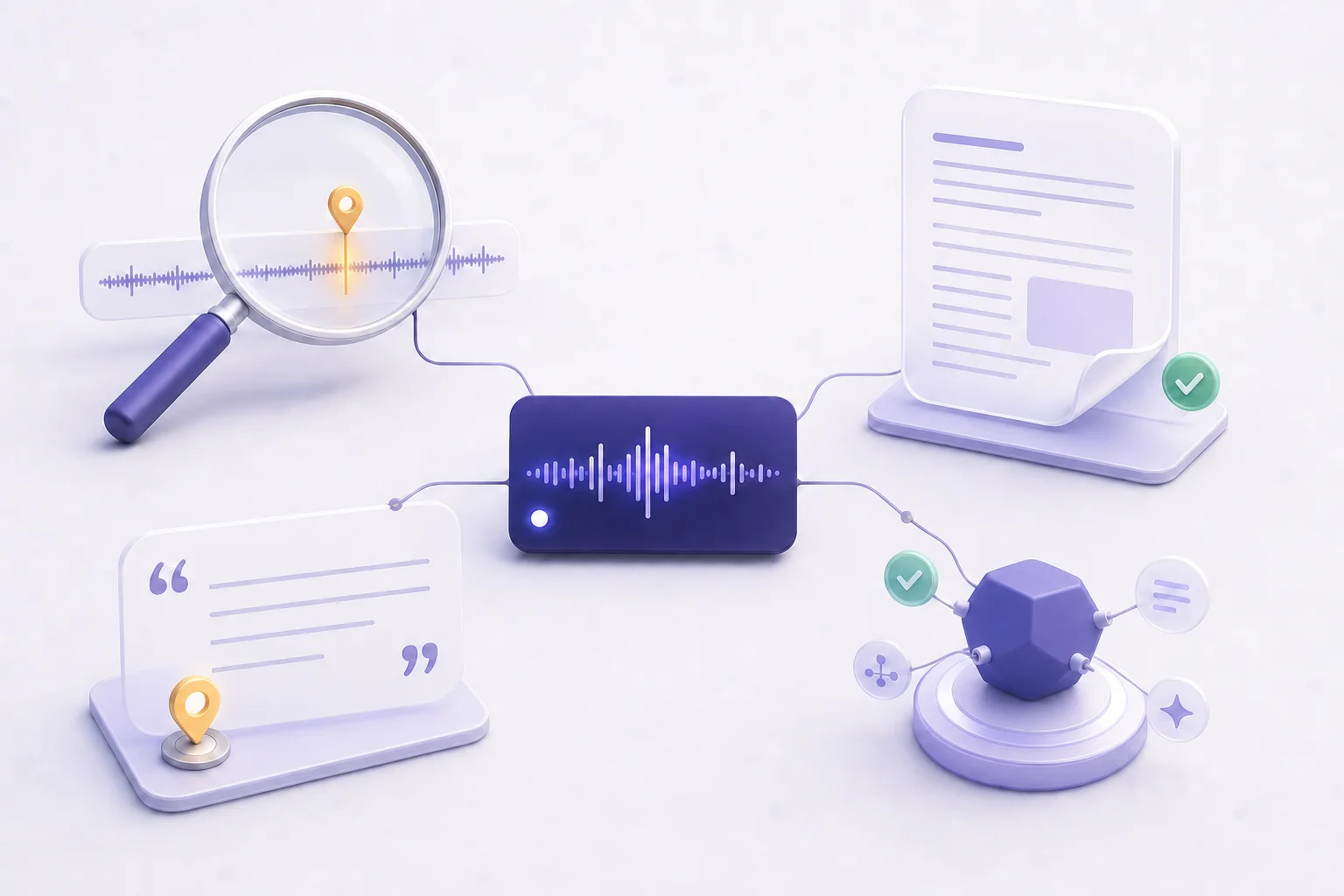
Because PodHood already understands the episode — its key moments, speakers, and topics — clipping isn't a separate production pass. It falls out of the graph, and it opens platforms an RSS feed alone never touches.
Key-moment clips
The same key moments that make an episode citable are the ones worth posting. Every indexed episode surfaces them automatically as ready-made clip candidates.
Video from audio alone
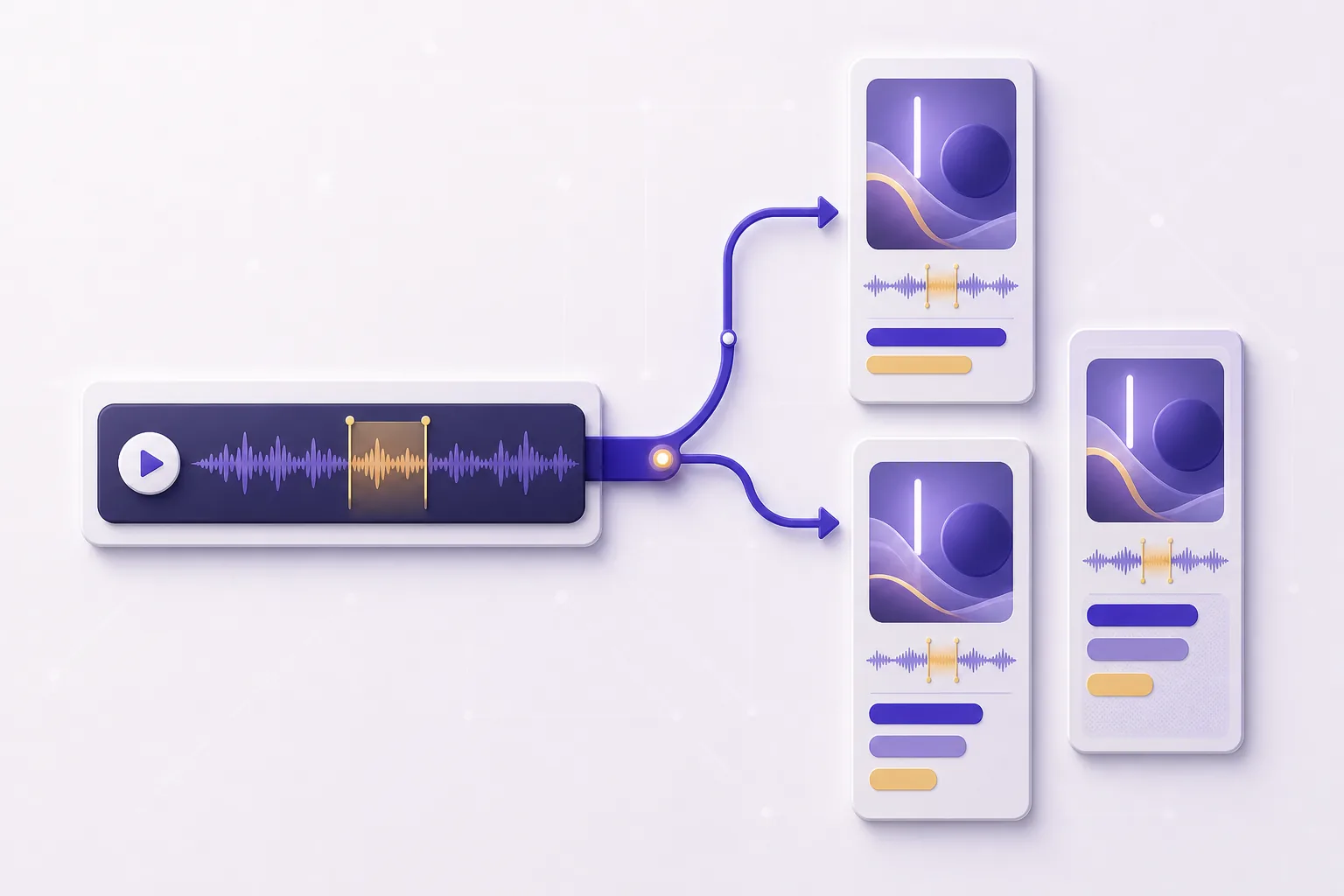
Each clip renders as a vertical 1080×1920 video — animated captions, your cover art, the speaker's name, a live waveform — built from nothing but your feed's audio.
Feed discovery
Shorts, Reels, and TikTok put clips in front of people who have never heard of your show — and every clip points back to the full, searchable episode.
Built on the Brief
No re-uploading, no separate tool, no editing timeline. Clips are cut in the Studio from the structure PodHood already built for your catalog.
Why does an audio podcast need video clips?
Because the platforms where new audiences actually scroll — YouTube Shorts, Instagram Reels, TikTok — are video-only. An audio show that never posts there is invisible to them; a clip is the piece of your episode that can live there.
That's new distribution, not extra work: the moments are already in the episode, and the effect compounds with consistency — every episode carries a handful of clippable moments, and a catalog that ships them steadily keeps feeding discovery long after the episode aired.
How does PodHood know what to clip?
It has already read the episode. Indexing surfaces each episode's key moments — the claims, definitions, and turns worth quoting — and those same moments are the ones worth clipping.
So clipping isn't a manual pass over a waveform. Each candidate arrives pre-trimmed to its moment, snapped to sentence boundaries, with the speaker attributed — you adjust and restyle rather than hunt.
What do the clips look like?
Vertical 9:16 video — a 1080×1920 MP4 with animated captions burned in, the native shape for Shorts, Reels, and TikTok. You pick from 11 visual templates and 17 caption styles, and every frame carries your show's name, episode art, and the speaker on screen.
Captions are burned into the video itself, so clips hold attention in muted autoplay feeds — word-by-word timing in any language, CJK scripts and emoji included. Square (1:1) and widescreen (16:9) formats are on the way.
Distribution is discovery. A clip is your most citable moment, showing up as video where the audience already scrolls.
Frequently asked questions
No. Clips render straight from the audio of episodes PodHood has already indexed — the same sync that powers your Library powers clipping. No camera, no video editor, no separate upload.
Open Clips in your Studio and pick an episode: its key moments are waiting as suggested candidates. Open one, trim the window on the transcript, pick a template and caption style, and generate — the finished vertical video is ready to download and post.
Yes. The clip renderer burns captions into the video itself — 17 animated styles across 11 visual templates — so clips stay watchable with the sound off, where most feed viewing happens. Captions handle any language, including CJK scripts and emoji.
Vertical 9:16 today — a 1080×1920 MP4 built for YouTube Shorts, Instagram Reels, and TikTok. Square (1:1) and widescreen (16:9) formats are coming.
Nothing beyond your plan at launch: Clips is included on every plan, Free included, and rendering never draws from your indexing credits — each Channel has a fair-use daily render cap instead. Plan details are on the pricing page.
Not yet. Clips launched for podcast (RSS) channels first — the renderer builds video from your feed's audio, which is exactly what an audio-only show has. Clips for YouTube-sourced channels, cut from the actual footage, are next.
Every clip is cut from a moment that lives on your searchable Library, so it points back to the full episode at the exact timestamp — the path from a 40-second clip to a full listen is built in.
Grow from episodes you’ve already made.
Connect a YouTube channel or podcast feed — your back catalog imports in minutes, and every episode becomes another way for new listeners to find you. Free to start — no credit card.
Get started