How to turn podcast episodes into video clips (no camera required)
Turn audio podcast episodes into captioned vertical video clips for Shorts, Reels, and TikTok — how to pick moments, add captions, and publish, step by step.
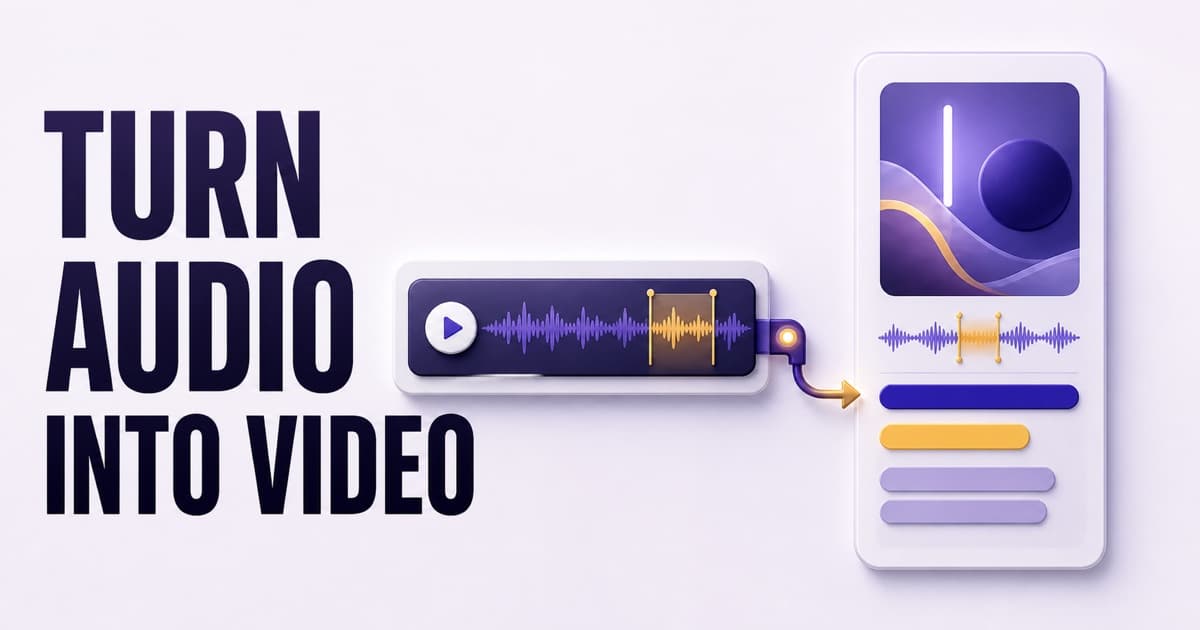
You don't need a camera or a video editor to put an audio podcast on video platforms. The working method: pick a moment that stands on its own — a claim, a definition, a story turn — keep it around a minute, render it as a vertical 1080×1920 video with captions burned in, and post it natively to YouTube Shorts, Instagram Reels, and TikTok with a pointer back to the full episode. PodHood automates the hard parts: indexing already identifies each episode's key moments, so every indexed episode arrives with ready-made clip candidates — trim on the transcript, pick one of 11 templates and 17 caption styles, and download the finished MP4. Clips is included on every PodHood plan for podcast (RSS) feeds, and rendering doesn't consume indexing credits.
Most podcasts have a distribution problem they can't see: the places where new audiences actually discover things — YouTube Shorts, Instagram Reels, TikTok — are video feeds, and an audio show has nothing to post there. Your feed reaches your subscribers. The scroll reaches everyone else, and until now it was closed to you unless you filmed your recordings or paid an editor to fake it.
That's the gap clips close. This post covers how to turn audio episodes into video clips that work in those feeds — the method first, which applies whatever tools you use, and then what PodHood's Clips, now live for every podcast (RSS) channel, automates away.
Why should an audio podcast post video clips?
Because short-form video is the one discovery channel that doesn't require anyone to be looking for you. Podcast apps surface shows to people who already search; your RSS feed reaches people who already subscribed; Google reaches people typing queries your episodes answer. Short-form feeds are different: they're recommendation-driven, so a strong 40 seconds can land in front of thousands of people who have never heard of your show and weren't looking for one.
For a video-native creator that's table stakes. For an audio-first show it's a genuinely new surface — a way to build reach and recognition on platforms where your show currently doesn't exist at all. The clip meets someone mid-scroll; the caption points to the full conversation; the episode page and your subscriber list turn a stray viewer into a listener you keep.
The compounding matters more than any single clip. Every episode contains a handful of moments that can travel. A catalog that ships them steadily builds a second, public-facing body of work — one that keeps recruiting new listeners long after each episode aired.
What makes a moment worth clipping?
A moment that stands on its own. A viewer arrives with zero context — no show intro, no guest bio, no build-up — so the clip has to open inside something already interesting and close before it needs anything else. In practice, the moments that work are:
- A claim — a strong, arguable statement ("Most podcast growth advice is written for shows that already grew").
- A definition — a crisp explanation of something people half-understand.
- A turn — the point in a story where the outcome flips.
- An exchange — a question and an answer that lands, complete in itself.
Notice what's not on the list: your intro, your banter, your "welcome back to the show." Those depend on context the viewer doesn't have.
If you've indexed your episodes with PodHood, you've seen this list before — it's what indexing already extracts as key moments: the quotable, citable segments of each episode, with timestamps and speakers attached. The insight behind Clips is that the moments worth citing and the moments worth clipping are the same moments. That's why clipping doesn't need a separate discovery pass over your audio: the candidates are already sitting in the Brief.
How do you turn an audio episode into a video clip?
Whatever tooling you use, the job has five steps:
- Find the moment. Relisten (or re-read the transcript) for a self-contained claim, definition, or turn.
- Cut the window. Start inside the interesting part — no run-up — and end on a complete sentence. For most moments, 20–60 seconds.
- Make it video. Audio needs a frame to exist on a video platform: cover art, a waveform, the speaker's name, motion.
- Caption it, burned in. Most feed viewing happens muted. A clip without on-screen captions is a silent screen; captions burned into the video itself work on every platform, unlike platform caption features that vary and get turned off.
- Post natively, point home. Upload the file to each platform directly — feeds reward native video and bury outbound links — and put the episode pointer in the caption or a comment.
Done by hand, steps 1, 3, and 4 are the expensive ones: scrubbing hours of audio for moments, then assembling video and syncing captions in an editor, per clip, per episode. That cost is why most audio shows post no clips at all.
How PodHood cuts clips from episodes it has already indexed
Clips is a Studio surface, and it starts where manual clipping ends: every indexed episode's key moments are already listed as suggested clip candidates, each pre-trimmed to its moment and snapped to sentence boundaries. From there:
- Open Clips in your Studio and pick an episode.
- Choose a candidate — or adjust it: trim on the transcript itself by clicking sentences, anywhere from 3 seconds to 3 minutes.
- Style it: 11 visual templates (poster fields, cinema bars, vinyl, CRT, editorial layouts and more) × 17 animated caption styles, all independent — any template takes any caption look. Every frame carries your show's name, the episode art, and the speaker on screen, with speaker names switching automatically at handovers.
- Set the on-screen title and, if you like, highlight the keywords the captions should emphasize.
- Generate, and download the finished vertical 1080×1920 MP4 — captions burned in, in whatever language the episode was spoken, CJK scripts and emoji included.
No re-uploading, no timeline, no export settings. The step-by-step guide is in the docs.
Manual clipping vs. clipping from an indexed catalog
| Manual clipping | PodHood Clips | |
|---|---|---|
| Finding moments | Scrub hours of audio per episode | Key moments pre-identified by indexing |
| Trimming | By ear, on a waveform | On the transcript, snapped to sentences |
| Video assembly | Video editor, per clip | Rendered from a template |
| Captions | Manual transcription + sync | Word-timed, burned in, any language |
| Speaker attribution | Typed by hand | From the episode's diarized speakers |
| Marginal cost per clip | An editing session | About a minute of choices |
The right column is the reason consistency becomes realistic. One clip is a novelty; a clip per episode, every episode, is a distribution channel.
Common mistakes when clipping a podcast
- Opening with the run-up. The first two seconds decide the scroll. Start inside the moment, not on the road to it.
- Skipping captions. Muted autoplay is the default viewing mode; uncaptioned clips are invisible.
- Posting horizontal video. Vertical 9:16 is the native shape of every short-form feed; letterboxed audio waveforms read as ads.
- Linking instead of uploading. A link to your episode is not a clip. Upload the video natively and keep the link in the caption.
- Clipping only the episode's topic. The topic is what the episode is about; the clip should be the single sharpest thing said about it.
What do PodHood clips cost?
At launch, nothing beyond your plan: Clips is included on every plan, the Free tier included, and rendering never draws from your indexing credits — each channel has a fair-use daily render cap instead. Since clips are cut from indexed episodes, indexing remains the only metered step: index an episode once, and its moments are available to clip, re-style, and re-render whenever you need.
What's next for Clips
Two honest boundaries today, both temporary. Clips renders vertical 9:16 — square (1:1) and widescreen (16:9) formats are on the way. And it's live for podcast (RSS) channels first: the renderer builds video from your feed's audio, which is exactly what an audio-only show has. Clips for YouTube-sourced channels — cut from the actual footage rather than rendered from audio — are next.
If your episodes are already on PodHood, open Studio → Clips: your first candidates are already waiting. If they aren't, connect your feed — indexing builds the searchable library, the citable pages, and now the clips, from one pass over each episode.
Frequently asked questions
- Do video clips actually grow an audio podcast?
- They open a discovery channel an RSS feed can't reach. Short-form video feeds are recommendation-driven — they put content in front of people who don't follow you and never search for podcasts — and a clip is the only form of your show that can exist there. Growth still depends on the moments you pick and on posting consistently; a clip is a doorway, not a guarantee.
- What is an audiogram?
- An audiogram is a video built from audio: a still or animated visual — cover art, a waveform, captions — carrying the sound, so an audio-only recording can be posted on video platforms. PodHood clips are audiograms in this sense, with animated word-timed captions, your episode art, the speaker's name, and a live waveform rendered as a vertical 1080×1920 MP4.
- How long should a podcast clip be?
- Long enough to land one complete thought, short enough to survive a feed — for most moments that's 20 to 60 seconds. PodHood suggests roughly minute-long windows around each key moment and lets you trim anywhere from 3 seconds to 3 minutes, snapped to sentence boundaries so the clip never opens mid-word.
- Do I need to record video versions of my episodes to post clips?
- No. PodHood renders the video from your published audio alone — captions, artwork, speaker attribution, and motion come from the episode's transcript and metadata. Your recording setup doesn't change at all.
- Can I make clips from a YouTube podcast with PodHood?
- Not yet. Clips launched for podcast (RSS) channels first, because the renderer builds video from the feed's audio — exactly what an audio-only show has. Clips for YouTube-sourced channels, cut from the actual footage, are next.
- How much does it cost to make clips with PodHood?
- Nothing beyond your plan at launch: Clips is included on every plan, the Free tier included, and rendering never draws from your indexing credits. Each channel has a fair-use daily render cap instead. Clips are cut from indexed episodes, so indexing is the only metered step.
- Which platforms should I post podcast clips to?
- The three vertical short-form feeds: YouTube Shorts, Instagram Reels, and TikTok. Upload the video natively on each — feeds reward native uploads and bury outbound links — and put the pointer to the full episode in your caption, comment, or profile.
Founder of PodHood. Writes about how podcasts and YouTube channels get found on Google and in AI answers — and turn that discovery into an audience they own.
Keep reading
- Does your podcast need its own website? Why one platform isn't enough
- WebMCP for podcasts and YouTube channels: now agent-ready